Overview
This guide shows the fastest way to get started with LFG Tool.
For advanced setups or integration into existing server structures, please refer to the detailed command articles in the Knowledge Base.
Quick Setup
- Create a text channel for LFG posts
- Run /setlfg in that channel
- Run /vcsetup
- Click the 1️⃣ button
That’s it: Your server is ready to go.
What Happens Next
LFG messages will now automatically turn into clean LFG embeds when users are in a voice channel, and dynamic voice channels will be created as needed.
Need More Options?
For customization and advanced configuration, check out the detailed guides in the Knowledge Base.
Have fun gaming! 🎮
Overview
Setting up an LFG channel is very simple. You need the Manage Server permission to configure it.
How to Set It Up
Go to the text channel you want to use as an LFG channel and run
/setlfg
there.
There is no limit to how many LFG channels you can create on your server.
What Happens After Setup
Once configured, the bot will monitor that channel and check whether the user is currently connected to a voice channel.
If the user is in a voice channel, the bot deletes the original message, converts it into an LFG embed, and automatically adds a link to that voice channel.
The appearance and behavior of the generated LFG message can be customized further with features such as a prefix and a button.
How to Remove It
To remove an LFG channel, simply run /setlfg again in the same channel.
Note: The command must be used directly in the text channel you want to configure as the LFG channel.
Overview
Setting up a prefix gives you more precise control over how LFG messages are converted.
Why Use a Prefix
Once a prefix is configured, users can still write normal messages in the LFG channel while they are in a voice channel.
Only messages that use the configured prefix are converted into an LFG embed. This prevents every message from being converted automatically.
How to Set It Up
You can choose any prefix you like and configure it with
/setprefix.
The prefix can be configured individually for each LFG channel.
How to Remove It
If you want to remove an existing prefix completely, use
/setprefix
and enter remove as the prefix.
Note: Prefix settings are channel-specific. Each LFG channel can use its own prefix.
Overview
In the standard LFG embed, the voice channel is already included as a clickable hyperlink.
What the Button Does
With
/setbutton,
you can add a Join Voice button to the embed.
This does not change the feature itself in any way. It is purely a visual enhancement.
How to Enable It
Run /setbutton in the LFG channel you want to configure.
Buttons can be enabled individually for each LFG channel.
How to Remove It
If you want to remove the button again, simply run
/setbutton
once more.
Note: The button is cosmetic only. The voice link continues to work even without it.
Overview
The /vcunlink command disables the requirement for a user to be in an active voice channel before a message can be converted into an LFG embed.
What This Changes
Once enabled, messages in that LFG channel can be converted even if the user is not currently connected to a voice channel.
Caution: If you have not configured a prefix, every message in an LFG channel set up this way will be converted into an embed. This can quickly become confusing.
Recommended Usage
It is recommended to use /vcunlink with caution and only in combination with a prefix.
How to Re-Enable the Voice Channel Requirement
Run /vcunlink again to restore the original condition.
Note: This setting can be configured individually for each LFG channel.
Overview
Using /vcsetup opens the setup panel for configuring dynamic voice channels.
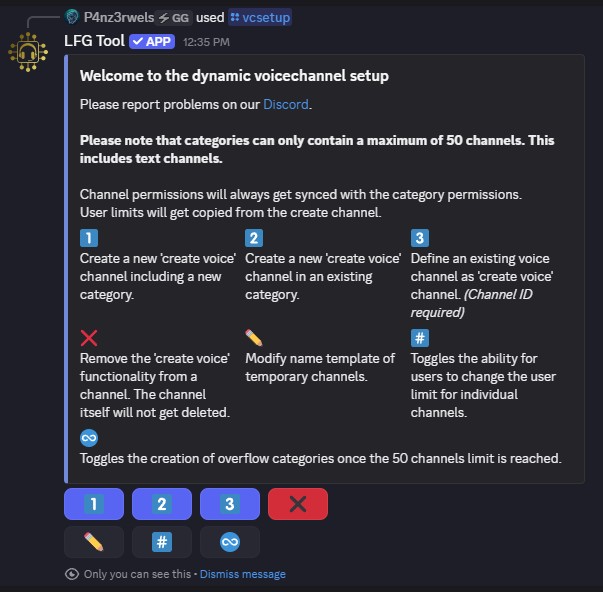
Dynamic voice channel setup panel
Setup Options
1️⃣ Create in a new category
Creates a new voice create channel inside a new category. You can rename that category afterward if you want. This does not affect functionality.
2️⃣ Create in an existing category
Creates a new voice create channel and lets you choose an existing category. This is useful if you want to integrate the feature into your current server structure.
3️⃣ Convert an existing voice channel
Converts an existing voice channel into a creator channel. This requires the channel ID of that voice channel.
This is especially useful if you want to replace another dynamic voice bot without setting everything up from scratch again.
Tip: Additional options such as removing creator channels, editing channel name templates, user limit settings, and overflow behavior are documented in their own articles.
Overview
In the /vcsetup panel, the ❌ button opens the option to remove existing creator channels.
Dynamic voice channel setup panel
How It Works
After selecting the remove option, simply follow the instructions shown by the bot.
This removes the create voice functionality from the selected channel. The channel itself is not deleted automatically.
Note: This is useful when you want to disable the dynamic creator function for a channel without removing the channel itself.
Overview
In the /vcsetup panel, the ✏️ button opens the editor for the names of dynamic voice channels.
Dynamic voice channel setup panel
Custom Channel Names
The names of temporary dynamic channels can be customized as desired. Keep in mind that Discord only shows a limited amount of text, so shorter templates are usually easier to read.
Available Template Variables
%INC% – Replaced by an incrementing number.
Note: If a channel list contains channels named 1, 2, 3, 4 and channel 3 disappears, the next newly created channel will reuse the number 3 and be placed back in the correct position in the list, filling the gap instead of being added at the end.
%NAME% – Replaced by the name of the user who opens the dynamic channel.
Important: Channel names cannot be changed by users. This is a deliberate decision. As the server operator, you remain responsible for your channel names. If users could rename channels freely and used names that violate Discord Terms of Service, this could put your server at risk.
Overview
In the /vcsetup panel, the #️⃣ button controls whether users are allowed to change the user limit of their temporary voice channel.
Dynamic voice channel setup panel
How It Works
This option enables or disables the ability for users to change their channel’s user limit individually.
If the option is disabled, the default user limit of the original create voice channel is used for all dynamically created channels.
Note: This setting is useful if you want users to manage the size of their own temporary channels without giving them broader moderation control.
Overview
In the /vcsetup panel, the ♾️ button controls overflow behavior for dynamic voice categories.
Dynamic voice channel setup panel
Why Overflow Exists
Discord categories are limited to a maximum of 50 channels. Once that limit is reached, no additional channels can be created inside that category.
What Happens When Overflow Is Enabled
If overflow is enabled, the bot creates temporary overflow categories as copies of the original category whenever the normal category limit is reached.
These overflow categories are deleted automatically once they become empty.
Note: Overflow is especially useful on large servers where many temporary voice channels may be active at the same time.
Overview
The moderation panel allows users to moderate their own dynamic voice channel.
To perform moderation actions, you must be the channel owner. You are considered the owner if you created the channel or if you have claimed ownership.
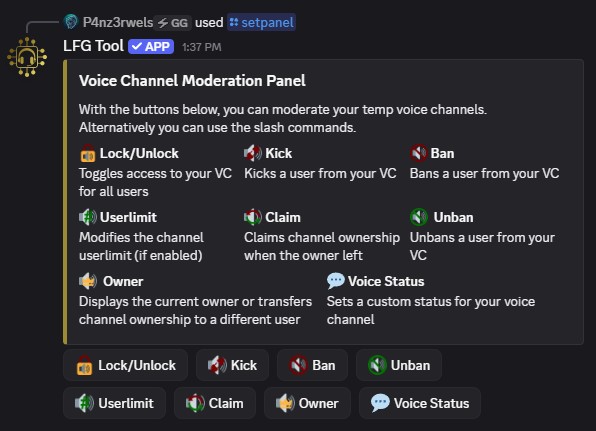
Dynamic voice moderation panel
How to Create the Panel
You can create the panel using /setpanel.
The panel applies to all dynamic voice channels created by the bot.
Important Limitations
Channels that were not created by the bot cannot be moderated through this feature.
You can create as many panels as you want on a server.
Note: Ownership-related actions such as checking, transferring, or claiming ownership are explained in the related sub-sections.
Overview
The Lock / Unlock button allows you to restrict access to your channel.
Once the channel is locked, no additional users can connect to it.
Dynamic voice moderation panel
Granting Access to Specific Users
You can grant users access to your own locked channel with
/access <username>.
Command Alternative
As an alternative to the panel button, you can also use
/lock.
If you use the command in a locked channel, it opens the channel again.
Requirement: You must be the channel owner to use this feature.
Overview
The Kick button disconnects the selected user from your voice channel.
The user can still rejoin afterward.
Dynamic voice moderation panel
Command Alternative
As an alternative to the button, you can also use
/kick <username>.
Requirement: You must be the channel owner to use this feature.
Overview
Like the Kick button, the Ban button disconnects a user from the voice channel.
The difference is that the user also loses their permission to connect to that channel, so they cannot rejoin.
Dynamic voice moderation panel
Undoing a Ban
You can remove the restriction again using the Unban button.
Command Alternative
As an alternative to the button, you can also use
/ban <username>.
If you use the command again with a currently banned user, that user will be unbanned.
Requirement: You must be the channel owner to use this feature.
Overview
The User Limit button allows you to adjust the maximum number of users allowed in your channel.
Dynamic voice moderation panel
Command Alternative
As an alternative to the button, you can also use
/userlimit.
Important: This feature is disabled by default and must be explicitly enabled by the server owner. Otherwise, both the button and the command will not work.
Requirement: You must be the channel owner to use this feature.
Overview
The Owner button shows the name of the current channel owner.
If you are the current owner, you can also transfer ownership to another user in the channel from there.
Dynamic voice moderation panel
Why Ownership Matters
Only the owner of a channel can perform moderation actions in that channel.
Command Alternatives
As an alternative to the button, you can use
/owner
to check ownership.
With
/owner <username>,
the current owner can transfer ownership to another user in the channel.
Overview
The Claim button allows you to claim ownership of a channel.
Dynamic voice moderation panel
Restrictions
Claiming is only possible under the following conditions:
- The current owner must no longer be in the channel.
- You must have been connected to the channel for at least 10 minutes.
Why the 10-Minute Rule Exists
The 10-minute rule was introduced to prevent quick “ninja claims.”
Command Alternative
As an alternative to the button, you can use
/claim.
The same restrictions apply.
Overview
The Voice Status button allows you to change the status text of your own voice channel.
Dynamic voice moderation panel
Behavior in LFG Embeds
If you set the status through the moderation panel, it is also displayed in the LFG embed.
If you set the status manually through Discord itself, it will not be displayed in the embed.
Why This Works Differently
Discord does not currently provide an official API interface to read voice status values.
Because of that, the bot can set the status but cannot read a status that was changed directly in Discord.
When the status is set through the panel, the bot temporarily stores it and can therefore include it in the generated embeds.
Requirement: You must be the channel owner to use this feature.
Experimental Feature
The Web Stats feature is currently under development and is being tested internally with a small group.
More information and documentation will be added once the feature becomes publicly available.
Note: This feature is not finalized yet and may change significantly before release.
Overview
When you invite the bot, it automatically requests all permissions required for full functionality.
Requested Permissions
- View Channels
- Send Messages
- Manage Messages
- Embed Links
- Manage Channels
- Manage Roles
- Connect
- Move Members
Minimum Permissions for LFG Only
If you only want to use basic LFG functionality, the following permissions are generally sufficient:
- View Channels
- Send Messages
- Manage Messages
- Embed Links
Note: All additional permissions are required for dynamic voice channel functionality.
Permission Details
View Channels
Required so the bot can see LFG channels and scan messages.
Send Messages
Needed to send LFG embeds and system messages.
Manage Messages
Allows the bot to delete the original user message before converting it into an LFG embed.
Embed Links
Required to send all bot embeds, not just link previews.
Manage Channels
Needed to create and delete dynamic voice channels.
Manage Roles
Required to modify channel permissions for moderation actions such as bans or locks.
Connect
Fundamental for all voice channel interactions and required for dynamic voice channels.
Move Members
Allows the bot to move users from the create channel into their dynamic voice channel.
Overview
The /setlog command is used to designate a channel as the voice log channel.
All voice channel actions are logged there. This includes, for example, connects, disconnects, users currently in the channel, moderation actions performed through the panel, and similar events.
Important: It is strongly recommended to keep this channel staff-only, since the logs can contain a large amount of information.
What Gets Logged
Voice channels that were not created by the bot are also logged.
Only stage channels are excluded, because their activity and user counts during large events would overwhelm the logs.
Log Channel Behavior
Only one voice log channel can be defined per server.
If you use /setlog again in a different channel, the previous log channel will be replaced by the new one.
If you use the command again inside the current log channel, that log channel will be removed.
Welcome
Select an article from the explorer to open it here.
LFG Channel
Documentation for setup and feature behavior inside the LFG Channel section.
Dynamic Voice Channel
Documentation for dynamic channel creation, templates, overflow, and moderation.
General Information
Documentation for additional bot-related information such as web statistics, permissions, and logging.